

Call Recording Configuration
Some settings must be configured in the Twilio Console for the recordings system to work properly.Quick setup
- Open Twilio Voice General Settings.
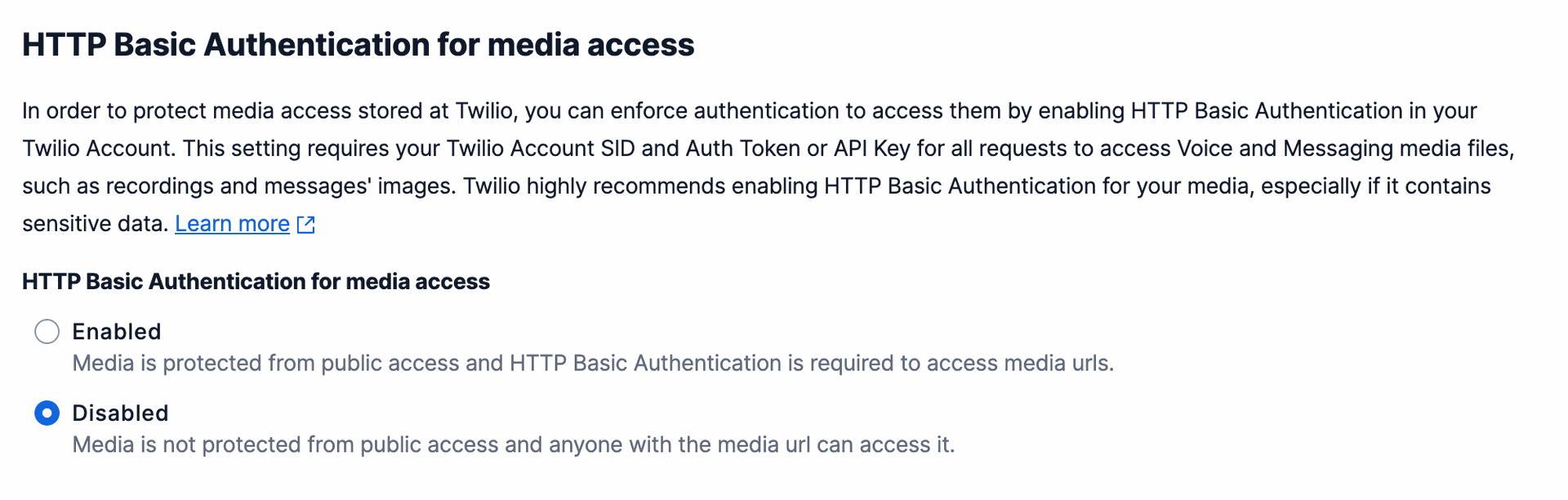
- Enable HTTP Voice URL Access.
- In the HTTP Basic Authentication for media access section, disable HTTP Auth.
Call Recording Access
Call recordings are stored in Twilio and are not downloaded by Odoo. When accessed from Odoo, there are two options:- Direct HTTPS link from Twilio
- How it works: Odoo provides the user with a direct link to the recording hosted on Twilio’s servers.
- Pros: Simple and fast; lower server load for Odoo.
- Cons: Not protected by Odoo access rules (anyone with the link can open it); link may expire or be restricted by Twilio policies.
- Proxy the download process
- How it works: Odoo fetches the recording from Twilio and serves it to the user as if it’s Odoo-hosted.
- Pros: Protected by Odoo’s access control — only authorized users can access it.
- Cons: Higher load on the Odoo server; users cannot fast-forward audio; slight delay due to proxying.
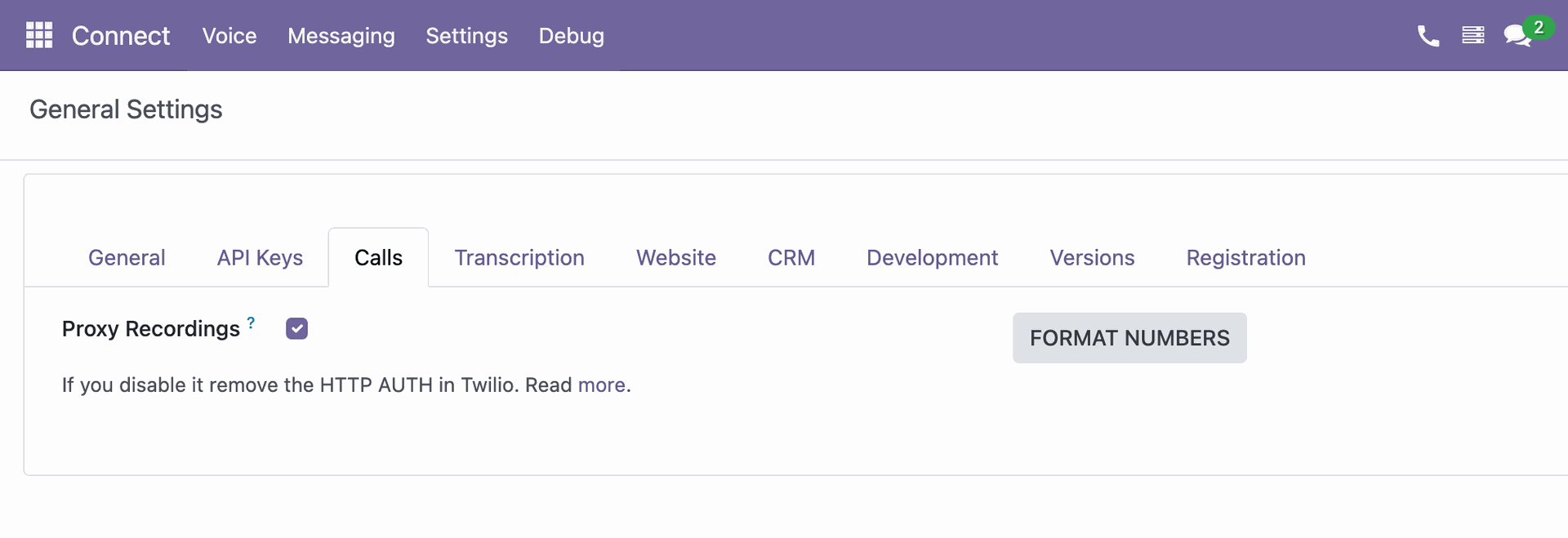
- Proxy is enabled by default in Settings → General → Calls.
Summary
- Use direct links if you prioritize performance and simplicity.
- Use proxy mode if you need strict access control and security.