> ## Documentation Index
> Fetch the complete documentation index at: https://docs.oduist.com/llms.txt
> Use this file to discover all available pages before exploring further.

# Browser configuration for Odoo Phone

> Ensure mic/sound permissions for WebRTC in Safari and Chrome.

# Browser configuration for Odoo Phone

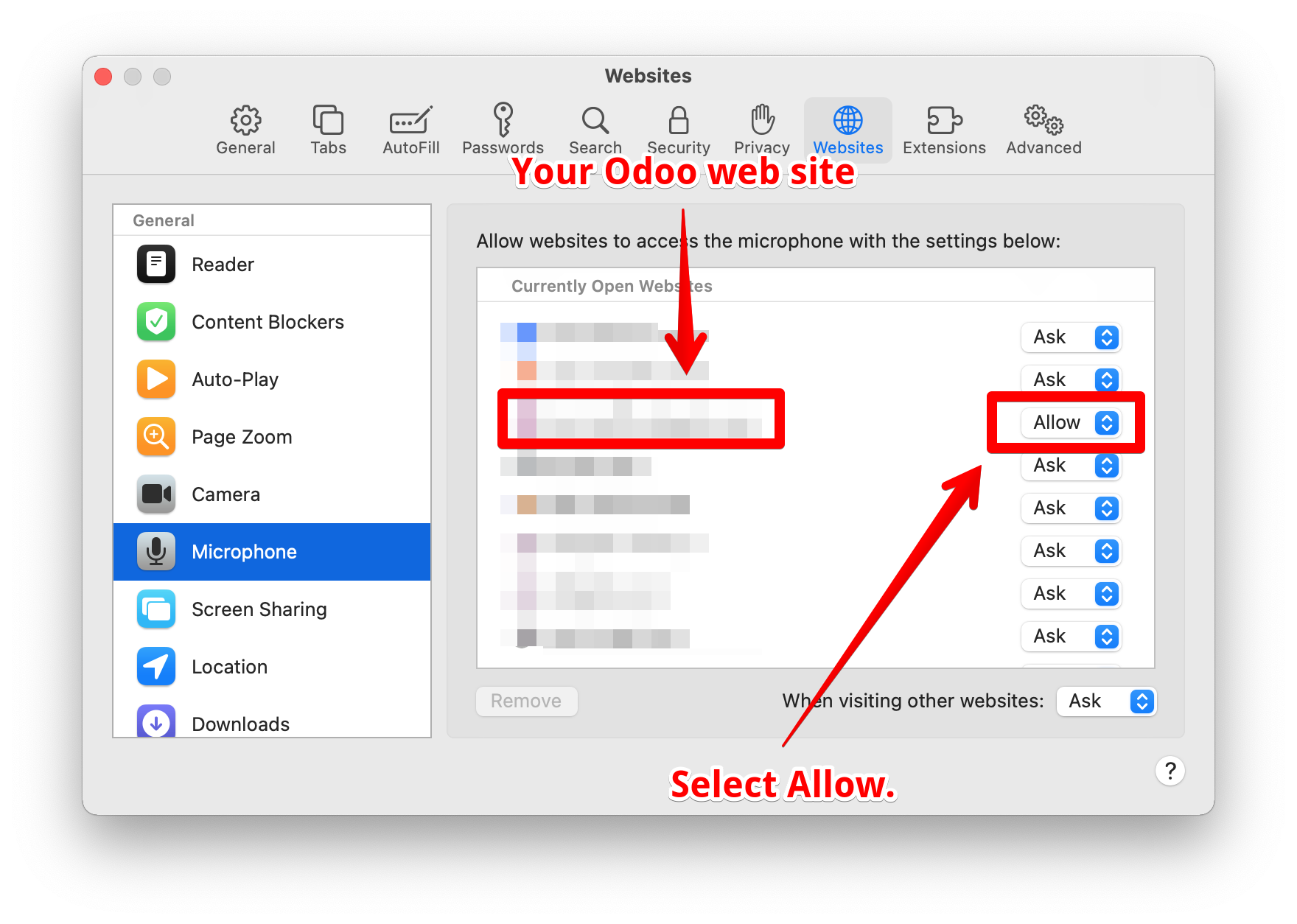
WebRTC requires mic and sound permissions; without them you may miss ringing or fail to establish incoming calls.

## Safari

* Enable autoplay/sound.
* Allow microphone access.
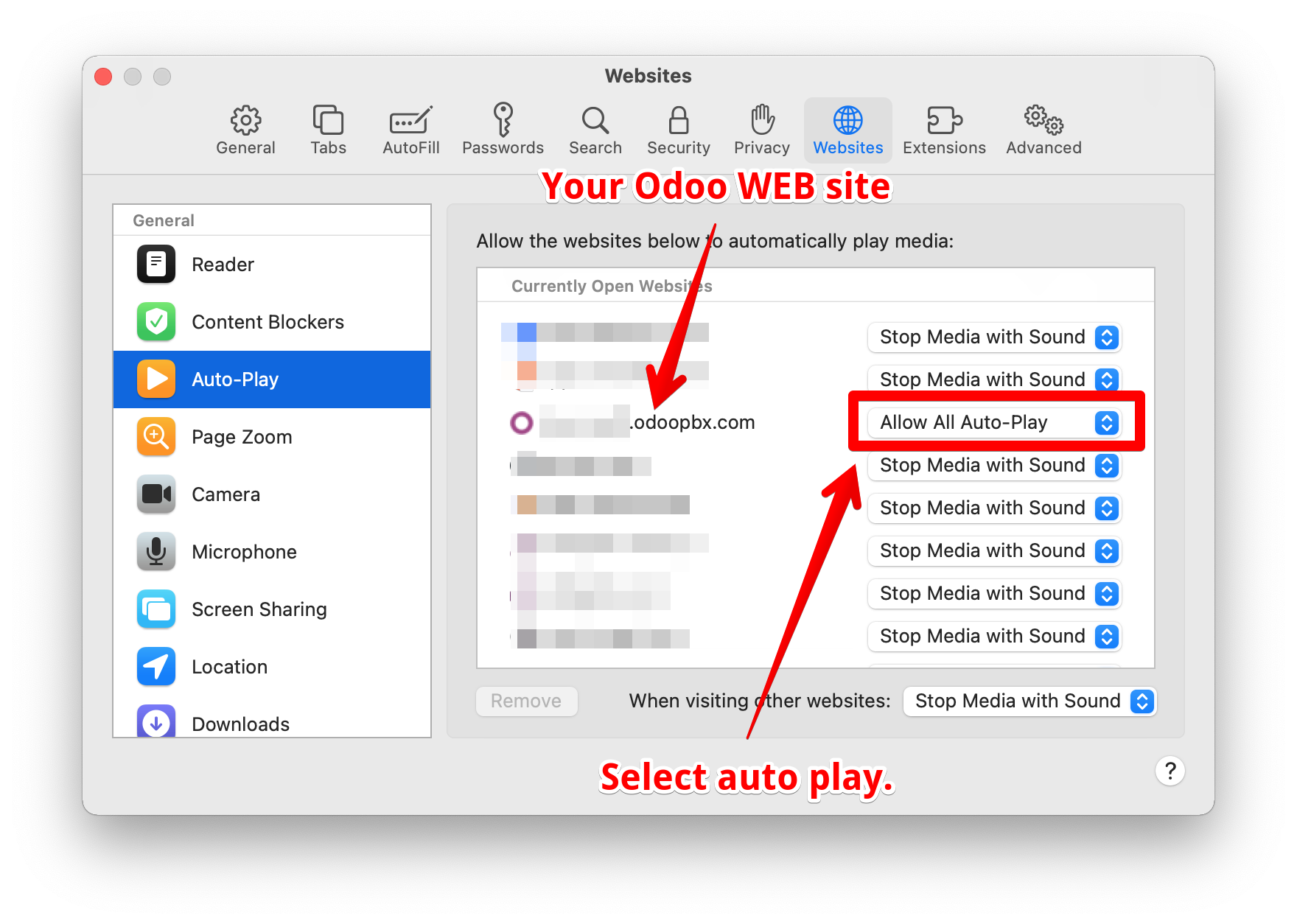
<img src="https://mintcdn.com/test-99895540/4eQ6AIbO89AUVLyN/pbx/images/browser-safari-sound.png?fit=max&auto=format&n=4eQ6AIbO89AUVLyN&q=85&s=a36e5b7a97b0db9e7b449ae8cc21b73f" alt="Safari sound" width="1760" height="1254" data-path="pbx/images/browser-safari-sound.png" />

<img src="https://mintcdn.com/test-99895540/4eQ6AIbO89AUVLyN/pbx/images/browser-safari-mic.png?fit=max&auto=format&n=4eQ6AIbO89AUVLyN&q=85&s=8349d69e34656da70a52a652ef0180d1" alt="Safari mic" width="1760" height="1254" data-path="pbx/images/browser-safari-mic.png" />

## Chrome

* Allow microphone for the Odoo site.
* Allow sound/notifications as needed.
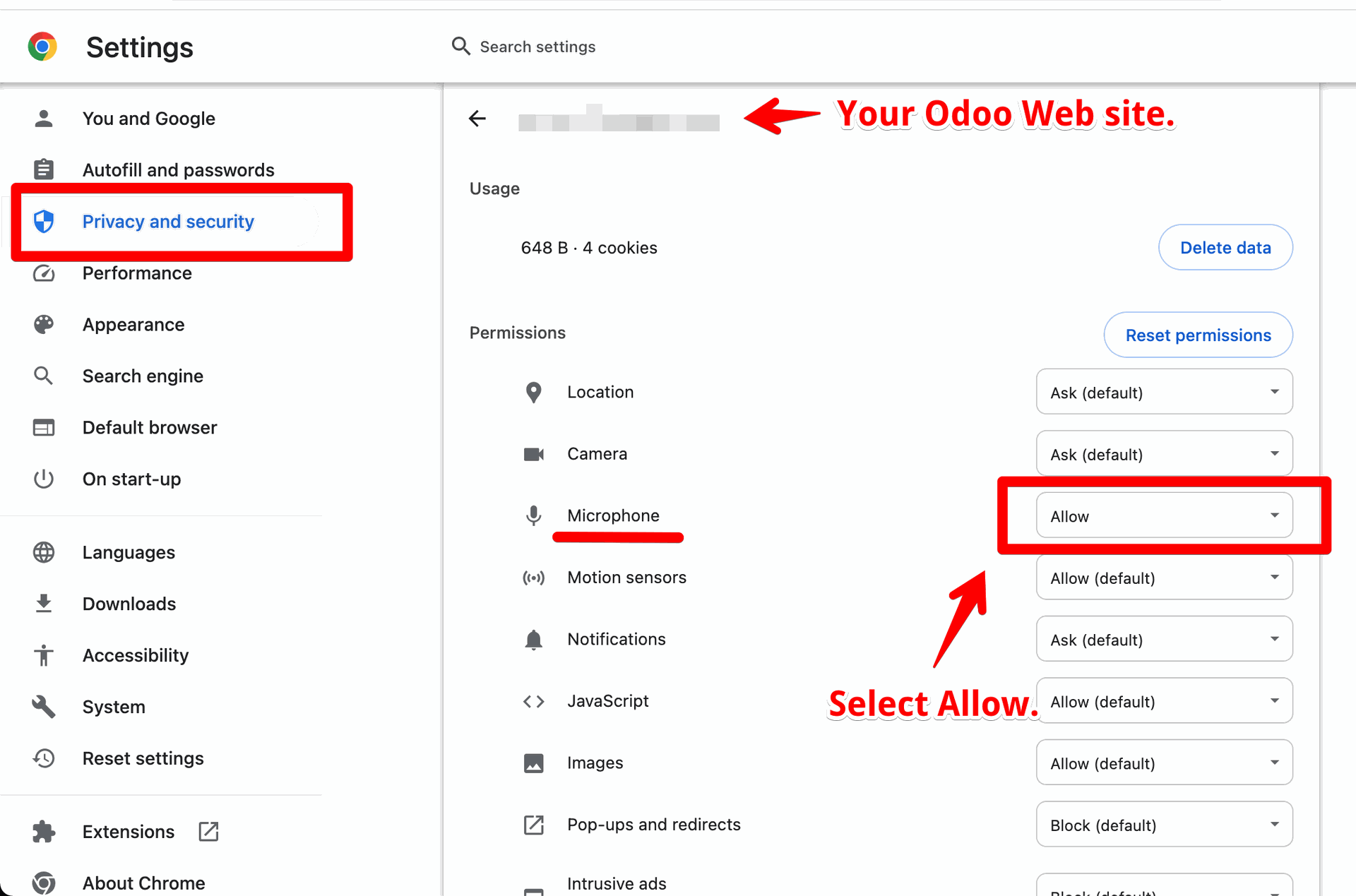
<img src="https://mintcdn.com/test-99895540/4eQ6AIbO89AUVLyN/pbx/images/browser-chrome-mic.png?fit=max&auto=format&n=4eQ6AIbO89AUVLyN&q=85&s=5f1ac3a2fd2a5582f5bec7ba1bcc7785" alt="Chrome mic/sound" width="1920" height="1269" data-path="pbx/images/browser-chrome-mic.png" />